
StoveTop support
Get help with StoveTop: failed imports, blocked sites, the share sheet, restoring or cancelling StoveTop Pro, moving to a new phone and deleting your data.


In short
- Email us any time. We usually reply within two working days.
- Failed imports never count against your 10 free video imports.
- StoveTop Pro is billed by Apple. Cancel and ask for refunds through Apple.
- Sign in with Apple before you change phones, so your recipes come with you.
How to get help
Email support@stovetop.app. We usually reply within two working days.
To help us sort things out quickly, tell us:
- what you were trying to do, and what happened instead;
- the link you tried to import, if it is about an import;
- your iPhone model and iOS version (Settings › General › About);
- whether you use StoveTop as a guest or signed in with Apple.
The answers below cover the most common questions.
An import failed or a site is blocked
StoveTop reads recipe websites and TikTok, Instagram and YouTube posts. If an import fails, the app tells you why and what you can try:
- “That site wouldn’t let us in.” Some recipe sites block servers like ours. Tap Try from this device. StoveTop then opens the page on your iPhone, out of sight, and reads the recipe from there. If the site blocks your phone too, try a different link to the same recipe, such as the recipe’s own page rather than a home page or search result.
- “That link isn’t supported.” Check that it is a link to a single recipe page or post. Links to profiles, playlists, search results or private posts cannot be imported.
- “That video is too long.” StoveTop can read videos up to 10 minutes long. Try a shorter cut, or the written version of the recipe if the creator has one.
- “We couldn’t read this recipe.” Something went wrong on our side. Tap Retry; it usually works the second time.
Failed imports never count against your 10 free video imports. Each account can start up to 20 imports an hour and 100 a day, so if you are importing a lot at once, wait a little and try again.
If a site keeps failing, email us the link. We use these reports to improve StoveTop.
A video has no recipe
StoveTop reads a video’s caption or description and the words spoken in it. If neither contains the recipe, StoveTop reports “No recipe found”.
This often happens when:
- the recipe only appears as text on screen. StoveTop cannot read on-screen text yet;
- the caption says “full recipe on my blog” or “link in bio”. For YouTube, StoveTop follows recipe links in the description automatically. For TikTok and Instagram, find the creator’s written recipe and import that link instead;
- the video shows cooking without saying the ingredients or amounts.
If StoveTop finds only part of a recipe, it shows you what it found, and you can fill in the rest before saving.
Amounts show “Amount not given”
“Amount not given” means the recipe source did not say how much to use, for example “salt to taste” or a video where the amount is never mentioned. StoveTop never guesses an amount, because a wrong guess is worse than a blank.
To add your own amount, open the recipe and edit it. Scaling and the shopping list keep these ingredients as “Amount not given” until you do.
StoveTop isn’t in the share sheet
- Make sure StoveTop is installed and you have opened it at least once.
- In TikTok, Instagram or YouTube, tap Share. These apps show their own share panel first. Look for the option that opens your iPhone’s share sheet (it may be called More, Share to or Share via), or tap Copy link.
- In the iPhone share sheet, scroll the row of apps to the end and tap More. Find StoveTop and turn it on, or tap Edit to add it to your favourites so it appears at the front.
- If you copied the link, open StoveTop, tap + at the top of your Recipes, then tap Paste and import it. iOS may ask you to allow StoveTop to paste.
You can also share straight from Safari: tap the share button on a recipe page and choose StoveTop.
Restoring purchases
StoveTop Pro is linked to the Apple Account that bought it. If Pro is missing, for example on a new phone or after reinstalling:
- Make sure your iPhone is signed in to the App Store with the Apple Account you used to buy Pro.
- In StoveTop, open Settings and tap Restore purchases. The button is also on the StoveTop Pro screen.
- Give it a moment. Pro appears once Apple confirms your purchase.
If Pro still doesn’t show, email us with the date of the purchase. Please don’t send your full receipt or any payment card details.
Cancelling and refunds
Apple bills StoveTop Pro, so you cancel and ask for refunds through Apple, not in StoveTop.
- Cancel: open your iPhone’s Settings, tap your name, then Subscriptions, choose StoveTop and tap Cancel Subscription. See Apple’s guide, Cancel a subscription from Apple. Cancel at least 24 hours before your renewal date to avoid the next charge.
- Refund: go to Apple’s Report a Problem page, choose Request a refund and select the StoveTop purchase. See Request a refund for apps or content that you bought from Apple. Apple decides refunds under its own policies.
After you cancel, Pro stays on until the end of the period you paid for. Your saved recipes stay in your library for good. Deleting the app does not cancel a subscription.
Moving to a new phone
If you signed in with Apple: install StoveTop on the new phone, open Settings and tap Sign in with Apple, using the same Apple Account. Your recipes, collections, shopping list and cook logs come back. Do this before you save anything new on the new phone: anything you save there before signing in stays in a separate guest account and does not move.
If you use StoveTop as a guest: your recipes are linked to a sign-in key kept on your old phone. We cannot promise they will move to a new phone. Before you switch, open StoveTop on your old phone, go to Settings and tap Sign in with Apple. Your recipes are linked to your Apple Account straight away, with nothing lost.
If you have StoveTop Pro, it is saved with your StoveTop account, so it normally comes back when you sign in. If it is missing, tap Restore purchases while signed in to the App Store with the Apple Account that paid (see Restoring purchases).
Deleting your data
You can delete single recipes, collections and shopping list items in the app at any time. A deleted recipe is removed for good after 30 days, with its cook logs and photos.
To delete your whole account, email support@stovetop.app with “Delete my StoveTop account” in the subject. If you signed in with Apple, write from the email address you shared with Apple, or tell us your Hide My Email address. If you use StoveTop as a guest, we will ask you for details that help us find your account, such as links you imported and roughly when. We confirm when it is done, within 30 days at the latest. You can also ask for a copy of your data.
Deleting the app from your phone does not delete your account, and deleting your account does not cancel a subscription. Cancel through Apple first.
The Privacy Policy has the details.
Wrong recipes and copyright concerns
A recipe came out wrong. StoveTop reads recipes automatically and can make mistakes. You can fix any recipe yourself: open it and edit it. Always check allergens, amounts, temperatures and food safety against the original source. If something is badly wrong, email us the link and what was wrong, so we can improve StoveTop.
You created a recipe and have a copyright concern. Email support@stovetop.app with your name, the work you own and where you published it, and the link in StoveTop you are concerned about. The Terms of Use explain what to include and what we do.
Supported devices and languages
- Devices: StoveTop is made for iPhone and needs iOS 16.4 or later. It is not available for Android yet.
- App language: the app is in English.
- Recipe language: in Settings › Recipe Language, choose to have new recipes written in English or Indonesian, or kept in their original language. You can also translate any saved recipe from its page.
- Sources: recipe websites and blogs, and TikTok, Instagram and YouTube videos and posts.
For more tips on saving recipes from each platform, see our guides.
Privacy and terms
- Privacy Policy: what we collect, who receives it and your rights.
- Terms of Use: the rules for using StoveTop and StoveTop Pro.
Guides
All guides
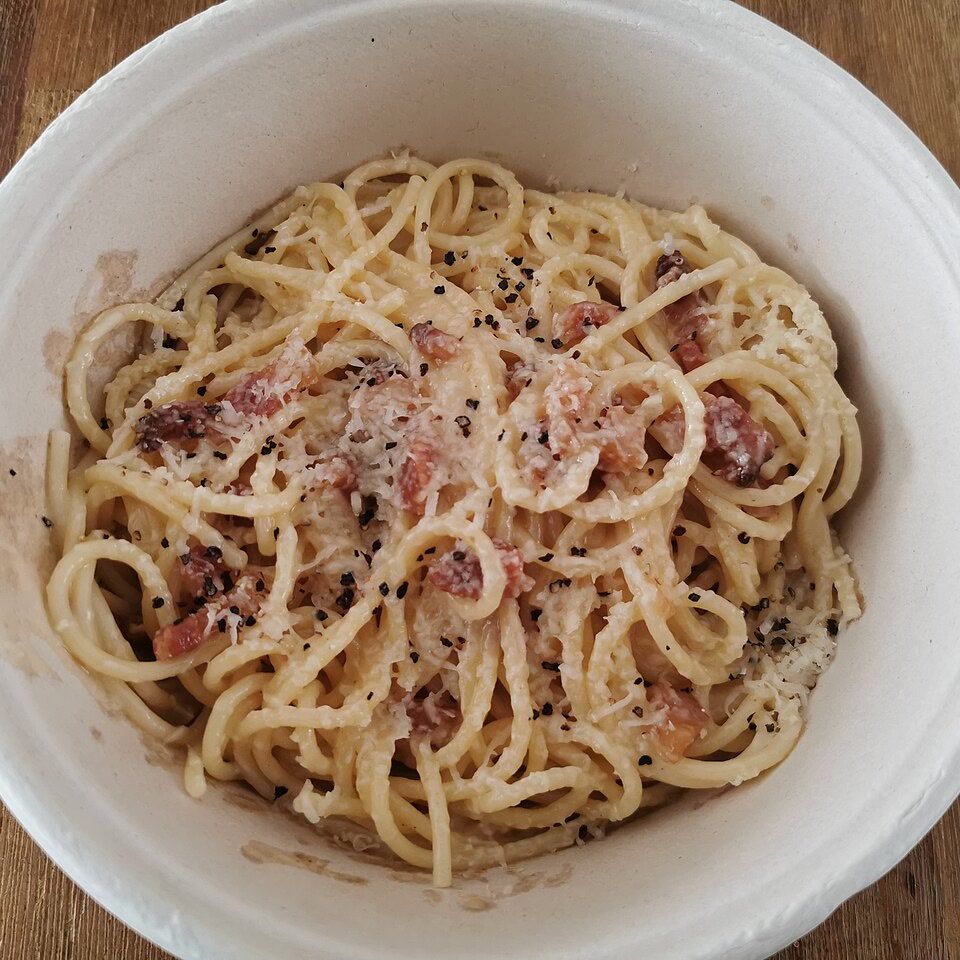


Photographs of dishes from open collections, credited at the foot of the page.